Keep fantasy matchups, weekly player leaders, NFL scores and European soccer scores on screen
while you watch on a supported Android TV or Google TV device.
Google TV and Android TV are the software that powers a device, not a single brand of
television. Here are examples to help you recognize them. Only our tested onn 4K Pro has
confirmed ticker operation; the other examples are candidates for testing, not confirmed
purchase recommendations.
Tested on one device
Walmart’s onn 4K Pro
A small streaming box sold under Walmart’s onn brand. This is the device used for our
successful installation and overlay test. Different generations can share the same name,
so check the exact model with us before buying for the ticker.
Not yet tested
Other onn Google TV devices
Examples include onn 4K and onn 4K Plus streaming devices. The onn name alone does not
confirm compatibility; look for Google TV on the product and verify the exact model.
You may already have the right type of system. Look in your television’s Settings → About,
or check its product specifications. Being a “smart TV” is not enough: different models
use different software.
Already own one? Check whether Google Play offers LeagueAdvantage TV for it and contact
support with your model. Please confirm compatibility before purchasing equipment specifically
for this beta.
Install the beta
Access is currently limited to approved testers. The test link alone does not grant access.
Use the Google account added to the tester list and signed into Google Play on your TV.
1. Check your device
Check the compatibility table below before installing or buying hardware. Only the onn
model listed as tested has been verified so far.
Choose “Download test app” on the invitation page. On Google Play, select Install and
choose your compatible TV if offered. Keep the TV online. The app may temporarily appear
as “com.leagueadvantage.tv (unreviewed)” during internal testing.
4. Connect your LeagueAdvantage account
Open LeagueAdvantage TV and choose “Get pairing code.” Scan the QR code or open leagueadvantage.com/pair-tv on your phone. Sign in to LA and enter the TV’s code. You will only see fantasy leagues you
belong to. Football members do not need to join a soccer league, and soccer members do not need
to join a football league.
5. Allow the ticker
Choose the overlay permission button in the TV app, then allow LeagueAdvantage TV to
display over other apps. Return to the app. If your TV does not offer this setting, report
the model to support; developer mode is not part of our customer installation steps.
6. Choose your scores and watch
Select one or more fantasy leagues. Turn NFL and European games on or off independently,
adjust the ticker, and choose “Start overlay.” Press Home and open your viewing app on the
same device. Reopen LeagueAdvantage TV to adjust it or choose “Stop overlay.”
Using and configuring your ticker
Use the arrow buttons on your TV remote to highlight a control, then press the center Select
or OK button. Scroll down to see more controls. Most settings cycle through their choices each
time you press Select; the button shows your current choice. Changes save automatically—there
is no Save button.
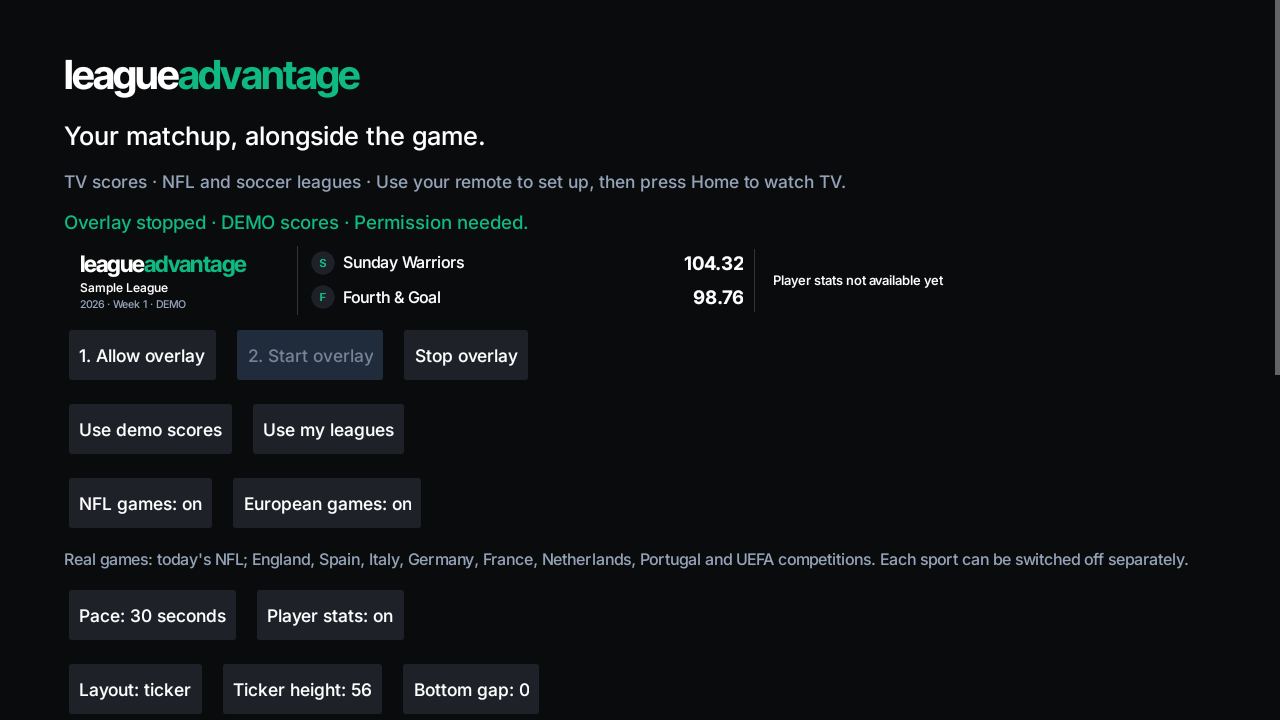
Start here: allow the overlay, choose your scores, then start it. This app-rendered
example uses demo scores and shows Start disabled until permission is allowed. Select the
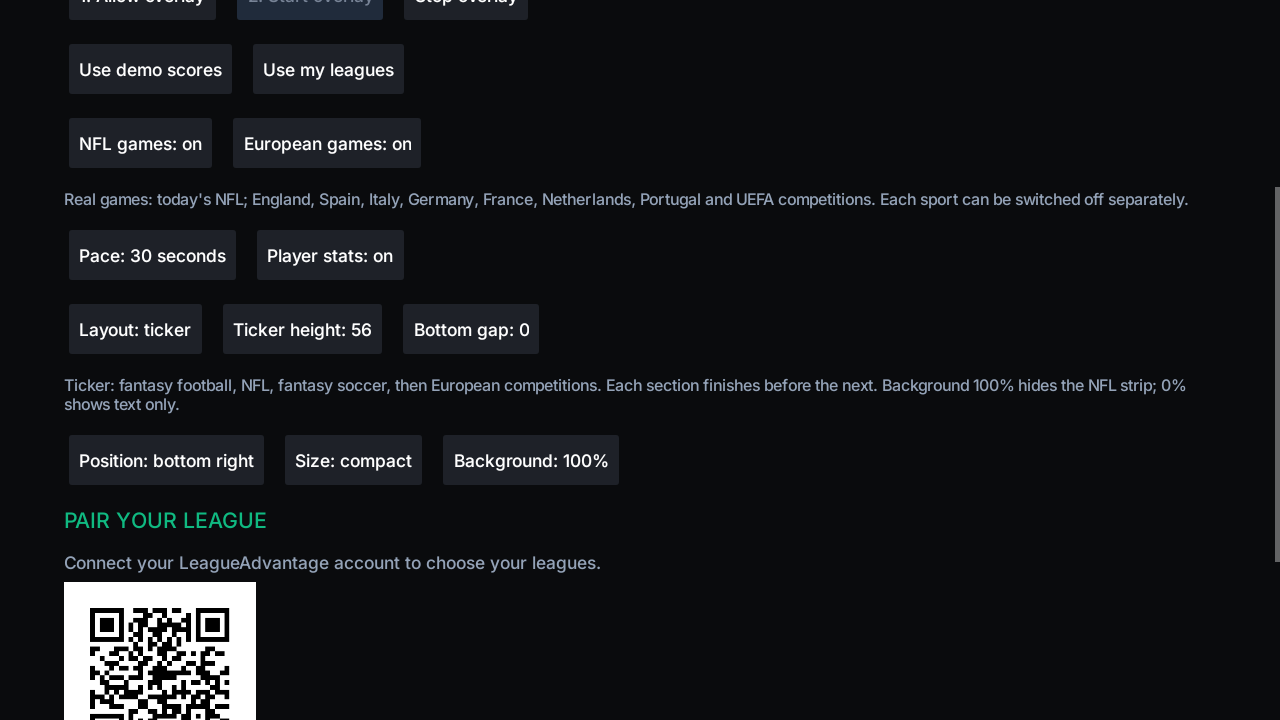
image to enlarge it.Scroll down in the TV app to adjust the ticker. Highlight a button with your remote and
press Select to cycle through its choices. Example shown: ticker layout, 30-second pace
and a solid 100% background.
Start watching
Open LeagueAdvantage TV, choose “Use my leagues,” then “Start overlay.” Press your
remote’s Home button and open your streaming app on that same device. The ticker stays on
screen while you watch, where the viewing app permits it. To change settings or stop it,
open LeagueAdvantage TV again and choose “Stop overlay.”
Choose what appears
Your fantasy leagues and professional sports scores are separate choices:
Your fantasy leagues: Under “LEAGUES IN ROTATION,” choose from the leagues
your LA account belongs to. You can select one or several; keep at least one selected. You
do not need to belong to both a football and a soccer league.
Optional sports scores: “NFL games” adds NFL scores and fixtures. “European
games” adds European soccer scores and fixtures. Each can be turned on or off independently,
and neither requires membership in a fantasy league for that sport.
For example, a fantasy football member can follow their own league and optionally add
European soccer scores without joining a fantasy soccer league. A fantasy soccer member
can add NFL scores the same way.
“Player stats” turns the player-stat display on or off. “Use demo scores” shows sample
data; choose “Use my leagues” to return to your own scores, then start the overlay again.
Set a comfortable reading speed
“Pace” controls how long each ticker page stays visible: 20, 30, 45 or 60 seconds. Choose
a higher number for more reading time. Enabled sections repeat in order: fantasy football
leagues and their weekly player leaders, NFL scores, fantasy soccer leagues, then European
scores grouped by competition.
Make it fit your screen
TV app control
What it changes
Layout
Choose “ticker” for a strip across the bottom, or “corner” for a smaller score box.
Ticker height
Makes the bottom strip taller or shorter. Use this with the ticker layout.
Bottom gap
Moves the ticker up from the bottom edge. A larger number leaves more space
underneath it.
Position and Size
For the corner layout, choose a screen corner and a compact or large score box. For
the ticker layout, use Ticker height and Bottom gap instead.
Background
100% gives a solid background that covers the picture underneath; 0% makes the
background transparent while keeping text visible. Press Select to cycle through 100%,
75%, 50%, 25% and 0%. Each layout remembers its own background setting.
To cover a broadcaster’s bottom score strip, choose the ticker layout with Background at 100%,
then adjust Ticker height and Bottom gap until it fits. Reopen your viewing app to check the
result.
Pairing is normally a one-time step for each TV. Your connection and settings stay saved when
you close the app, restart the TV or install a normal Google Play update. Uninstalling the
app, clearing its data or losing pairing authorization can require you to pair again. You do
not need a new pairing code just to change your ticker.
Check your device
Beta validation as of September 13, 2026. A working installation does not guarantee every
viewing app permits overlays.
LeagueAdvantage TV device compatibility
Device
Status
What to know
onn 4K Pro Streaming Device
Tested
Google Play installation and the ticker have been confirmed on one device.
Other Google TV / Android TV devices
Not yet verified
Android 8.0 or newer is required. Google Play compatibility and normal overlay permission setup must work on your exact model.
Apple TV
Not supported
This cross-app ticker is not available on tvOS. Video Picture in Picture is a different feature.
Roku · Samsung Tizen · LG webOS
Not supported
These systems cannot install this Android TV app. A compatible external streaming device can be connected to the TV.
Amazon Fire TV
Not supported in this beta
Fire OS needs separate testing and distribution. Vega OS devices cannot run this Android app.
Phones, tablets and computers
Setup only
Use a browser to join the test and pair your TV. The current app is designed for Android TV devices.
Need a hand?
The test link says unavailable or not found
Confirm you joined with the Google account on the tester list. Use “Download test app,”
not “Install public version.” New releases can take time to appear. If it persists,
contact support with the message you see.
My TV is missing from the install list
Check that Google Play on the TV uses your approved tester account and that the TV is
online. Google Play filters devices for compatibility. Send support the exact model and
Android version if it is still missing.
The ticker disappears in a viewing app
Check that the overlay is started and permission is allowed. Some viewing apps
intentionally block overlays. Report the viewing app and TV model; support cannot promise
to override that restriction.
Scores are unavailable or my pairing code expired
Check your internet connection. Scores depend on provider updates and may be delayed.
Request a new pairing code if it expired. If pairing is no longer valid, pair the TV
again.
I already have LA Scores Prototype
Stop the prototype overlay before starting LeagueAdvantage TV. The Play app needs its own
pairing and overlay permission. Keep the prototype until you have confirmed the Play
version works.
Contact support with your device
model, Android version, viewing app and what happened. Do not send passwords or pairing codes.